![bmk logo dark@2x.png]](https://info.biomemakers.com/hs-fs/hubfs/Web%20Images/Logos/bmk%20logo%20dark@2x.png?height=30&name=bmk%20logo%20dark@2x.png)
When to Use This Guide
Use this guide whenever you need to download BC Score data from a completed BeCrop Trial on the portal. Follow this guide to:
-
Navigate to the correct project and trial
-
Access individual treatment results
-
Export and download the Raw Score CSV file for each treatment
How to Export BC Scores
1. Navigate to the BeCrop Portal home page, then access the BC Trials tab from the top menu.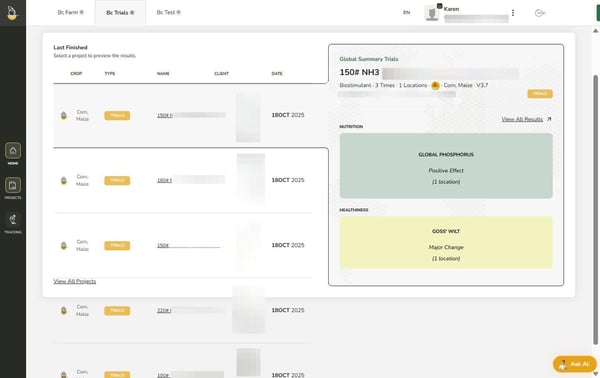
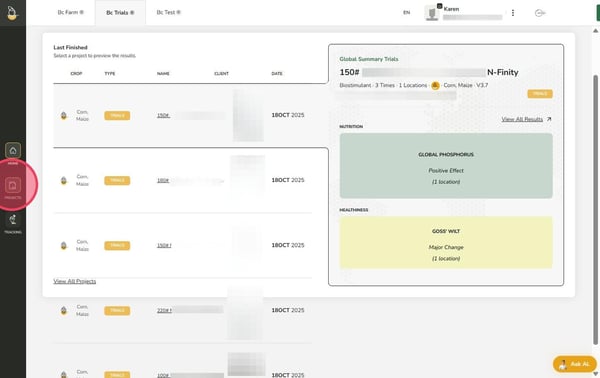
2. Click the Projects icon on the left-hand navigation bar.
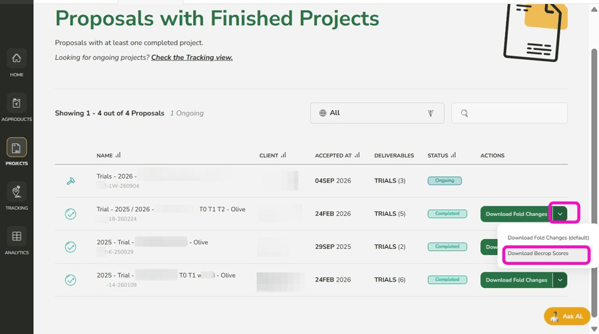
3. To Download the entire Trial Project: Click arrow button and select "Download Becrop Scores”
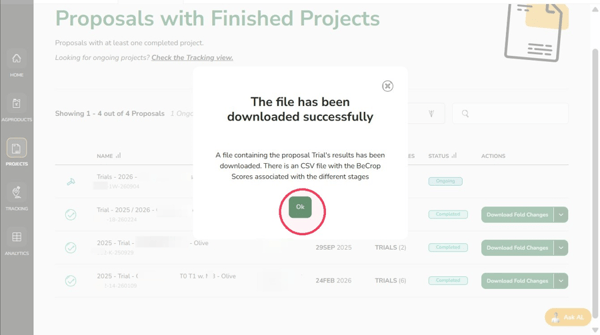
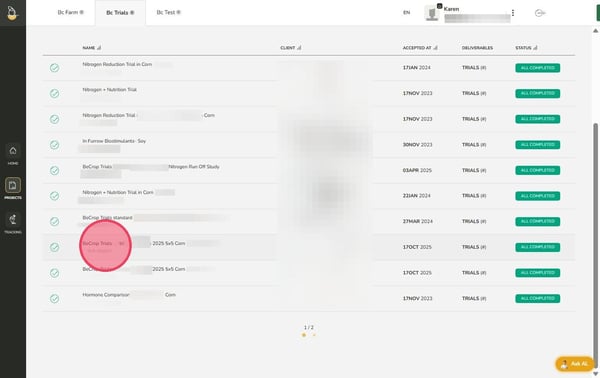
5. To download each treatment for the Trial Project: Select the completed trial that you are trying to export the raw BeCrop Scores
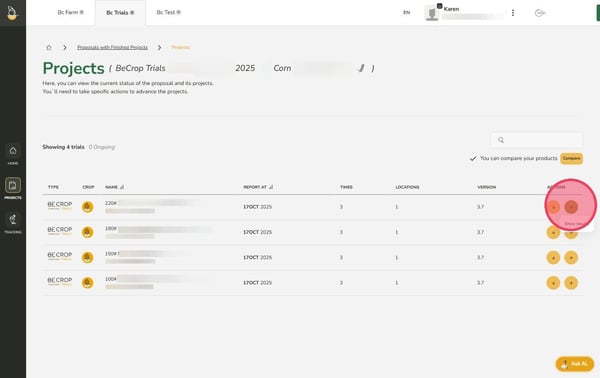
6. You will be directed to a page showing all the treatments for that trial. One by one, select the arrow pointing to the right (→) in the Actions column next to each treatment.
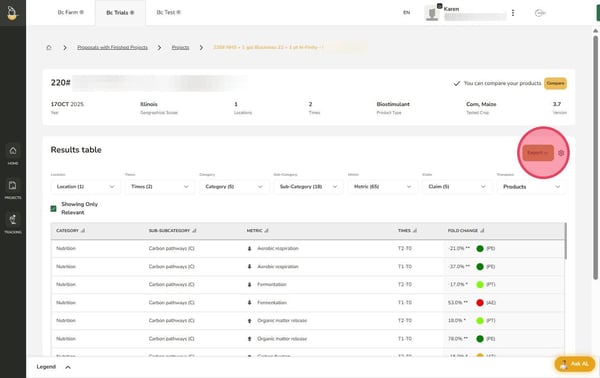
7. This opens the results page for that specific treatment. Click "Export".
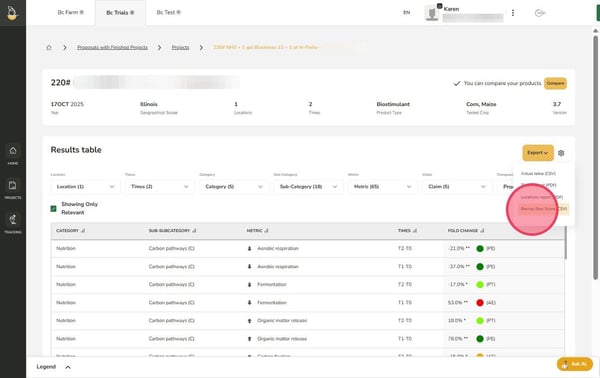
8. Click "BeCrop Raw Score (CSV)"
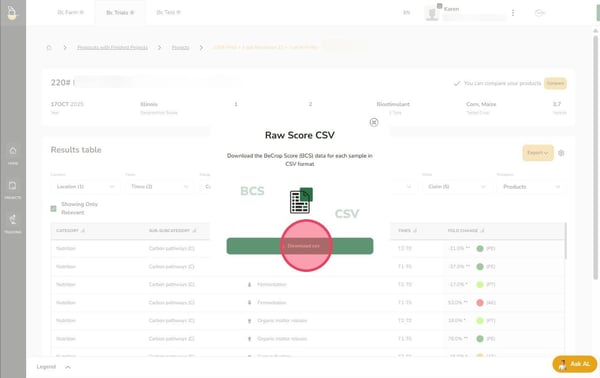
9. Click "Download CSV" and save the file to your desktop or preferred folder.
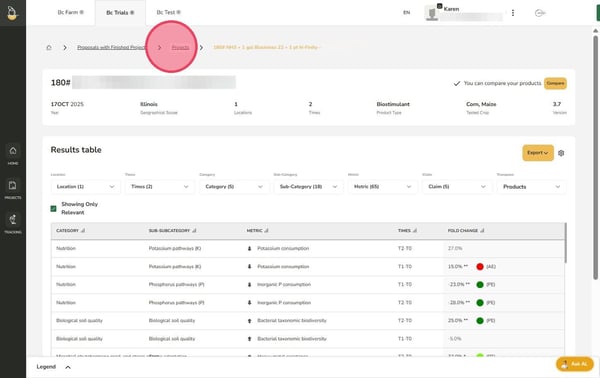
10. If there is more than one treatment in your trial, click "Projects" in the breadcrumb navigation at the top to return to the treatments list. Repeat steps 5 - 9 for each remaining treatment until all BC Score CSV files have been downloaded.
Tips & Reminders
-
Each treatment must be exported individually - there is no bulk download option.
-
Files are saved in CSV format, compatible with Excel and other data tools.
-
Keep your downloaded files organized by trial name and treatment for easy reference.
Troubleshooting & Support
If you encounter errors or need assistance, please contact the Customer Success Team:
-
North America: uscs@biomemakers.com
-
Europe & Latam: eucs@biomemakers.com