![bmk logo dark@2x.png]](https://info.biomemakers.com/hs-fs/hubfs/Web%20Images/Logos/bmk%20logo%20dark@2x.png?height=30&name=bmk%20logo%20dark@2x.png)
1. Navigate to https://portal.becrop.com/dashboard
2. From the main dashboard, select Tabular BC Test and navigate to the Analytics tab
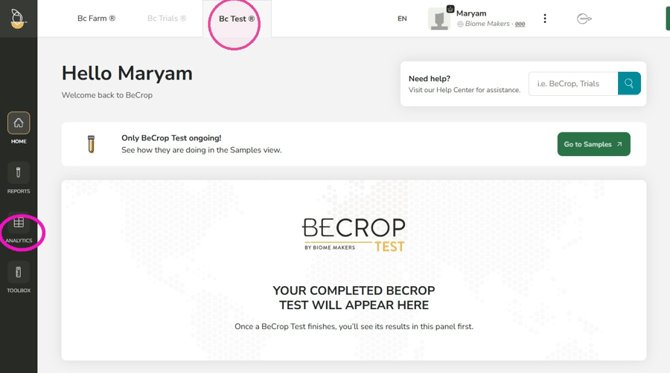
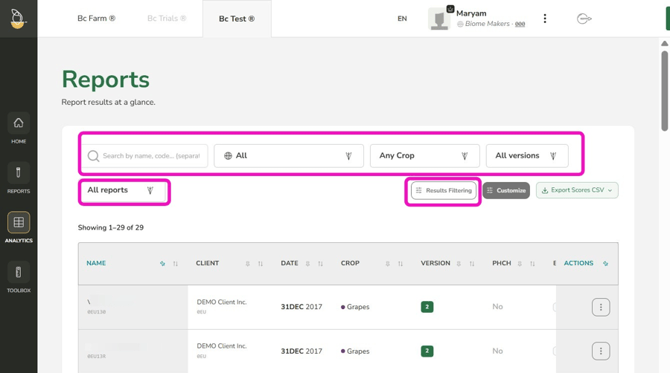
3. Use the multi-keyword search bar and filtering controls to isolate specific sample datasets quickly if required
- Multi-Keyword Search: Enter a number of keywords (e.g. Sample IDs, names) into the search field.
- High-Level Filters: Refine data by Client, Crop Type, Version or Physiochemical (Ph/Ch)
- Detailed Metric Filtering: Filter results precisely by Category, Metric, Conditional or Level Parameters
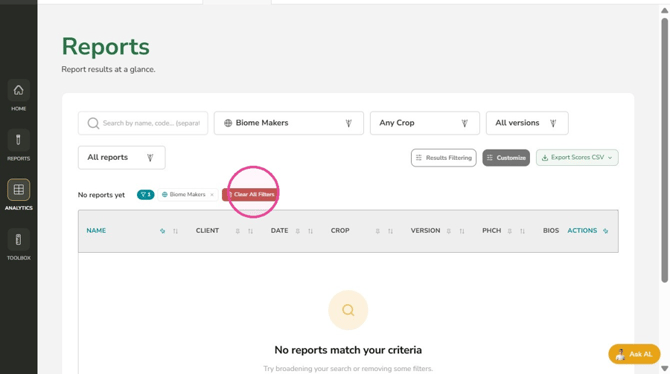
📌 TIP: You can click the “Clear All Filters” button at any time in the toolbar to clear all applied parameters and return to the default dataset view
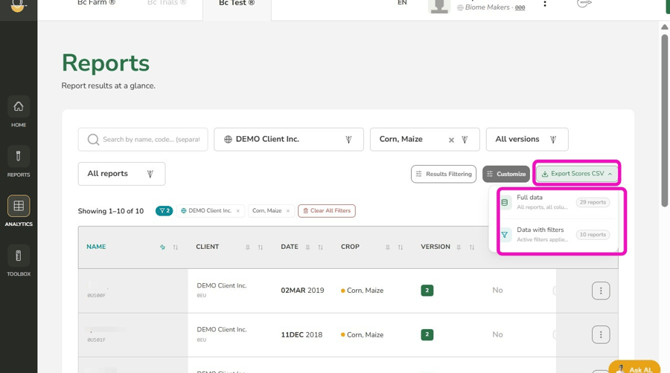
4. Click the “Export Scores CSV” button on the top right of the table toolbar
5. Select your desired export mode from the dropdown menu
- Full Data: Exports all records present in the current dataset
- Filtered Data: Exports only the samples that match your current filters.
To keep files easy to open in Excel and running smoothly, we limit each export to 2,500 records. If you have more than 2,500 records, you will receive them in a single ZIP file containing multiple CSVs.
Troubleshooting & Support
If you encounter errors or need assistance, please contact the Customer Success Team:
- North America: uscs@biomemakers.com
- Europe & LatAm: eucs@biomemakers.com