![bmk logo dark@2x.png]](https://info.biomemakers.com/hs-fs/hubfs/Web%20Images/Logos/bmk%20logo%20dark@2x.png?height=30&name=bmk%20logo%20dark@2x.png)
Create a New Subclient
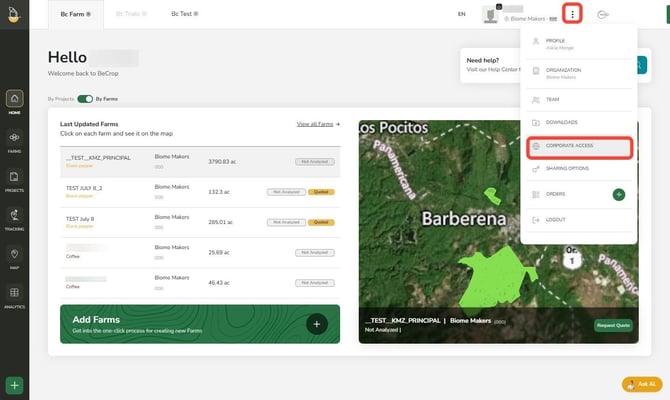
1. In the Dashboard click the three (⋮) dots beside your name at the top right corner. Select "Corporate Access"
Before adding a new subclient, always double-check the portal to see if the subclient already exists.
Use the search bar to enter the subclient’s name. If the subclient appears in the search results, they are already in the system, and not further action is needed.
If the subclient does not appear, continue with this process.
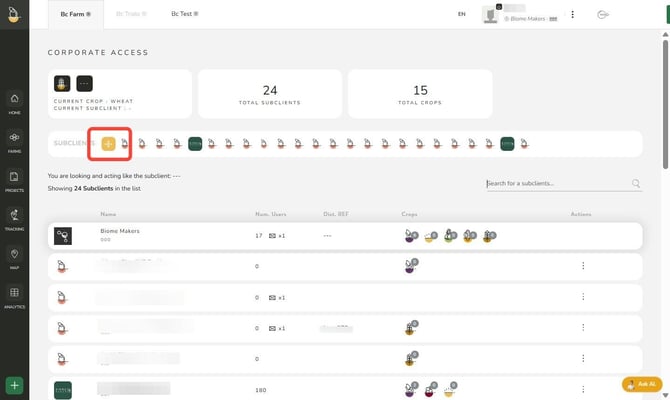
2. In the “Corporate Access” section, click the (+) button to create a new subclient
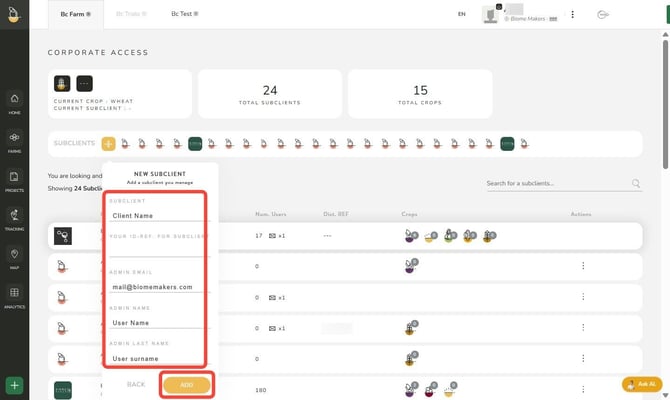
3. Complete the required form fields:
-
Subclient: Enter the company or farm name
-
Your ID-Ref for Subclient: (Optional) Enter a reference ID if needed
-
Admin Email: Enter the subclients email address
-
Admin Name: Enter the subclient’s first name
-
Admin Last Name: Enter the subclient’s last name
Subclient Registration
The subclient will receive an email invitation from BeCrop Portal.
They must click the provided registration link to complete their account set up. Once registered, they will have access to their account
Invite Users to Existing Subclient Accounts
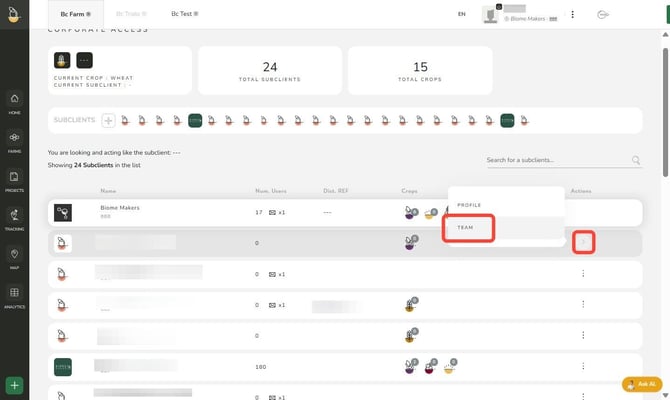
1. Inside the Corporate Access view, search for the desired subclient and click the three (⋮) dots. This will open a two option menu, click “Team”.
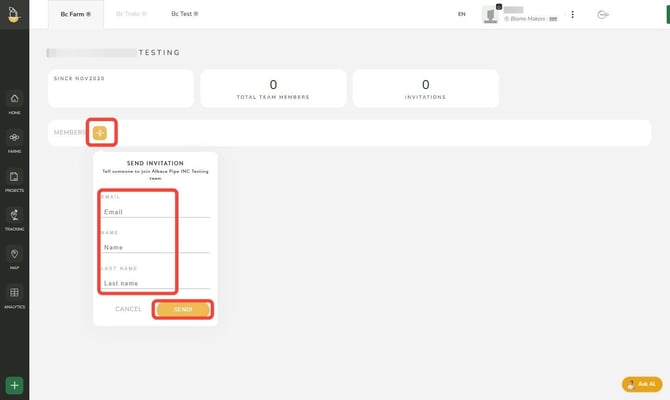
2. Click the (+) button to invite a new user to the selected subclient. Fill in the required fields:
-
Email: Enter the subclients email address
-
Name: Enter the subclient’s first name
- Last Name: Enter the subclient’s last name
Click “Send!” and the user will receive an invitation to their inbox with a link to complete the registration. They must click the provided registration link to complete their account set up.
Troubleshooting & Support
If you encounter errors or need assistance, please contact the Customer Success Team:
- North America: uscs@biomemakers.com
- Europe & Latam: eucs@biomemakers.com