![bmk logo dark@2x.png]](https://info.biomemakers.com/hs-fs/hubfs/Web%20Images/Logos/bmk%20logo%20dark@2x.png?height=30&name=bmk%20logo%20dark@2x.png)
When to Use the HeatMap Tool
The HeatMap is ideal for:
- Comparing multiple BeCrop® Test results at once
- Quickly spotting nutrient trends (e.g., NPK)
- Checking performance across varieties, fields, or management zones
- Sharing easy-to-read visuals with your team, advisors, or clients
Accessing the HeatMap Tool
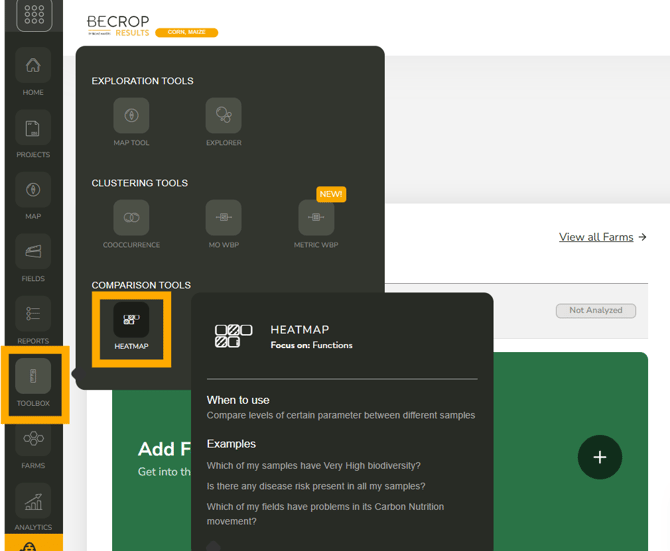
- Log into your BeCrop® Portal.
- From the left-hand menu, select Toolbox.
- Click on HeatMap Tool.
Loading Your Samples
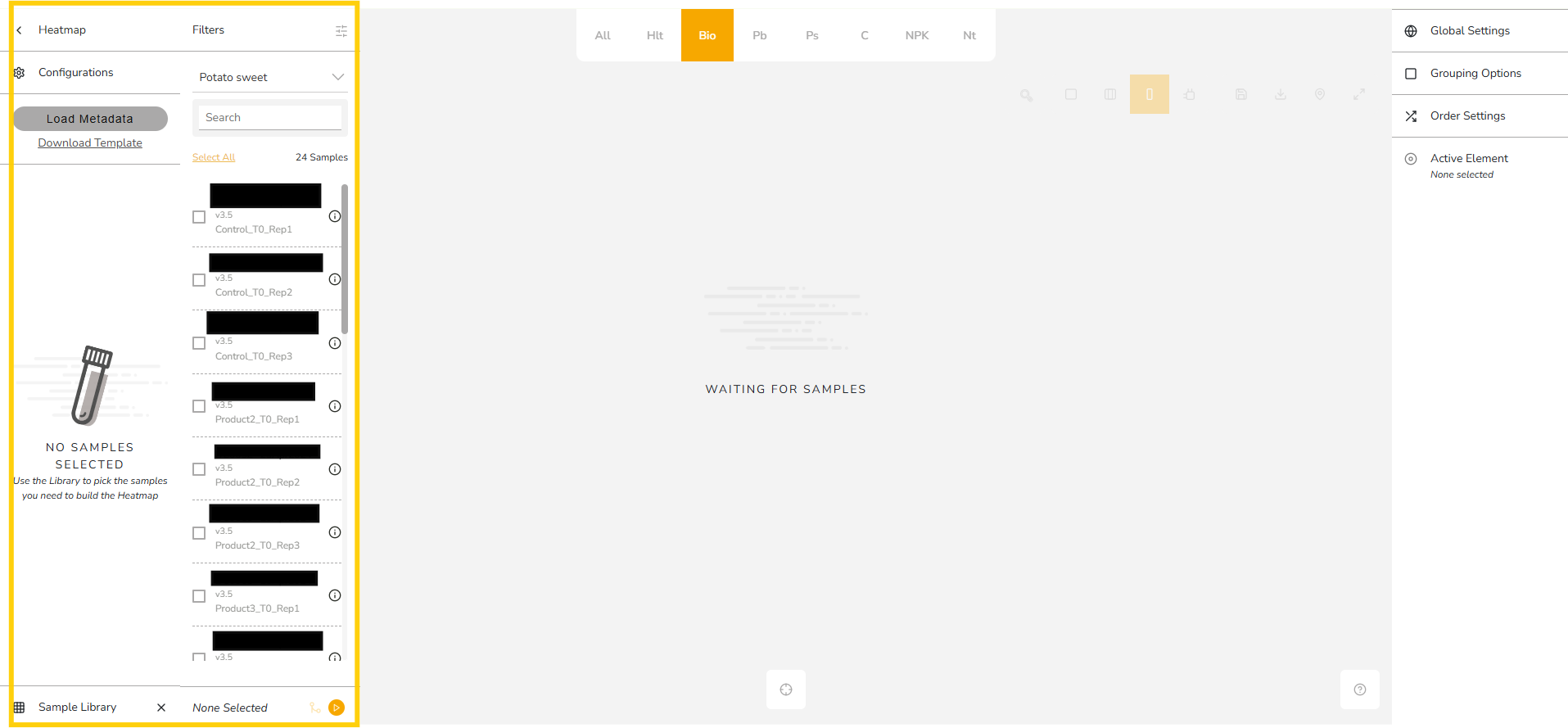
- On the left side, you can select the number of samples you want to analyze (e.g., “10 samples”). Click on the number next to ‘Sample Library’ to see your samples.
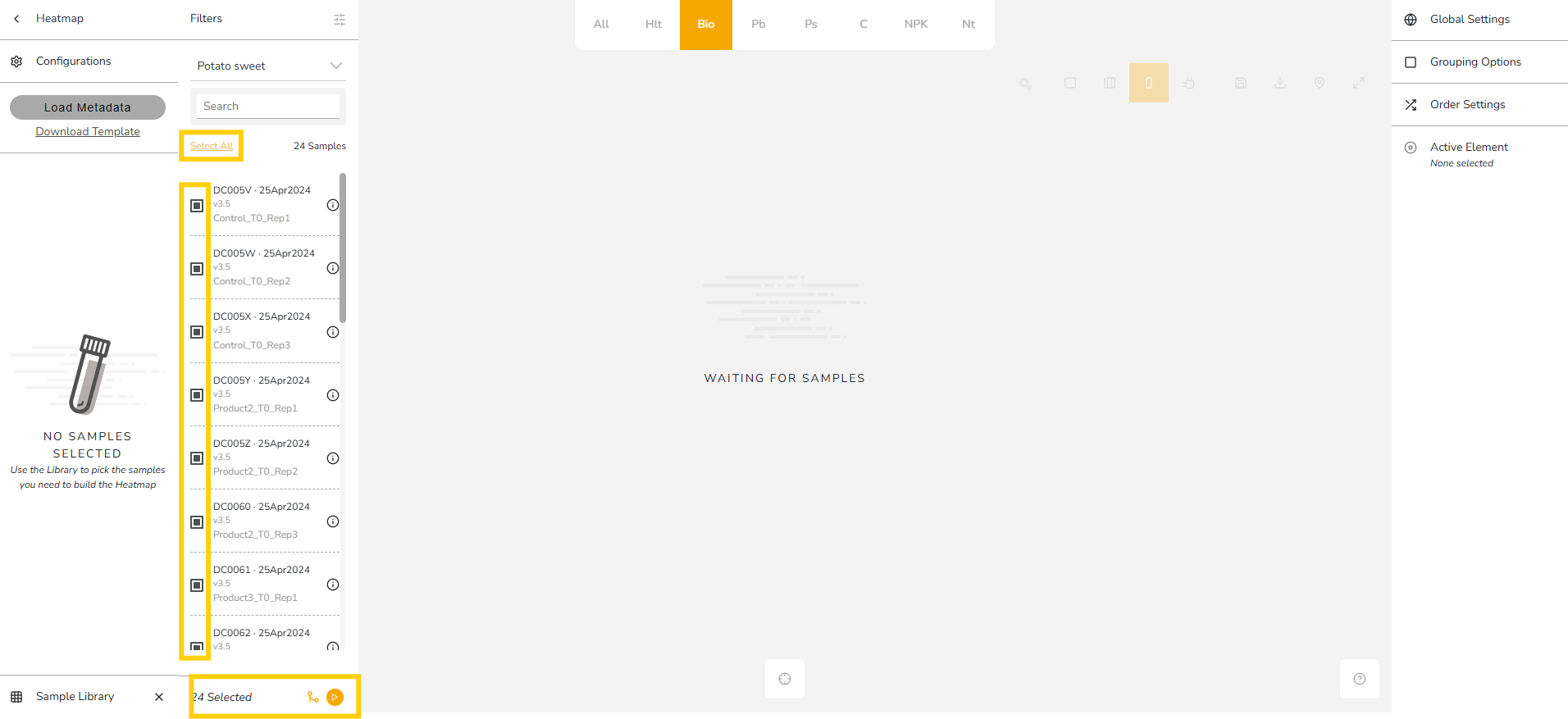
- Click Select All or manually choose specific samples.
- Press the Play (triangle) button to load your data into the heatmap.
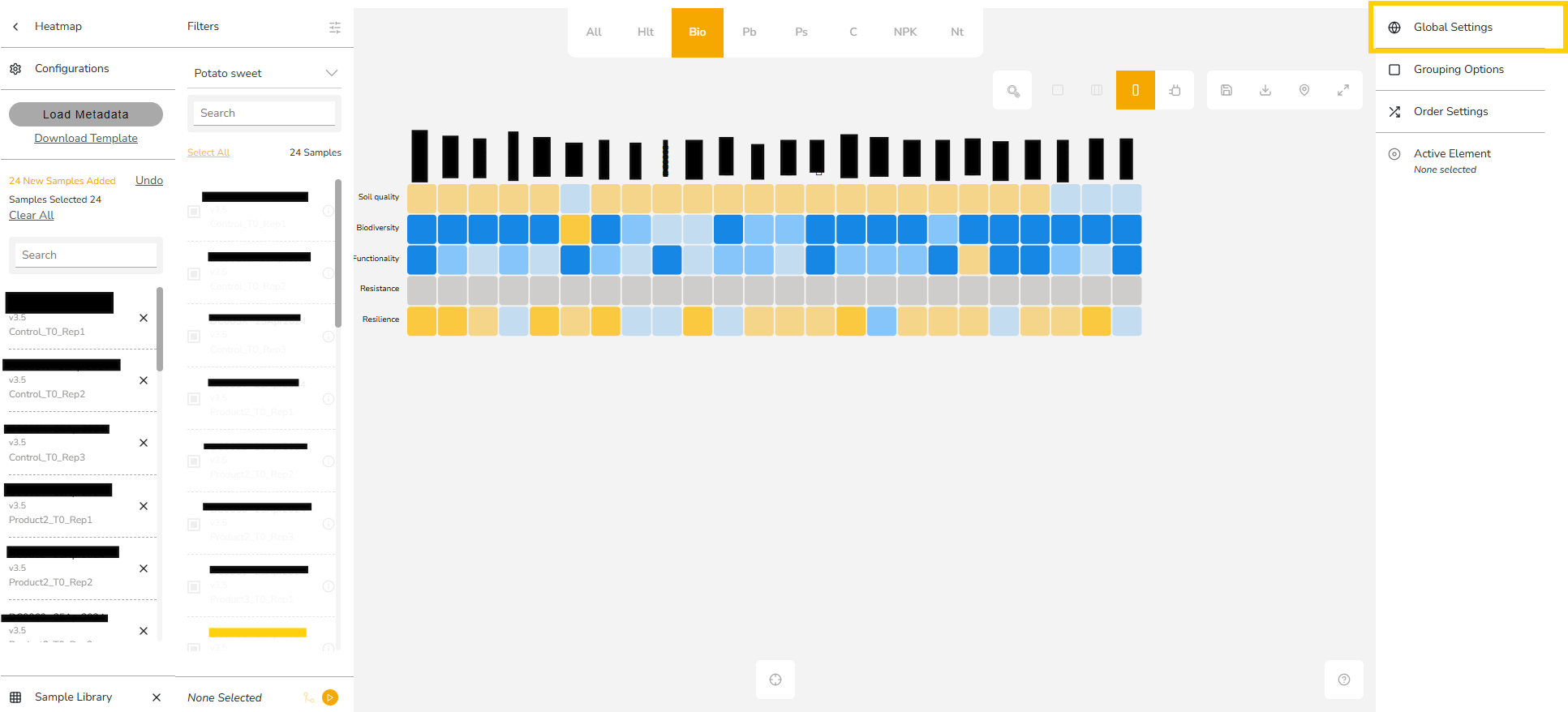
Once you clicked on the ‘Play’ (triangle) button, this is an example of how you will see your samples:
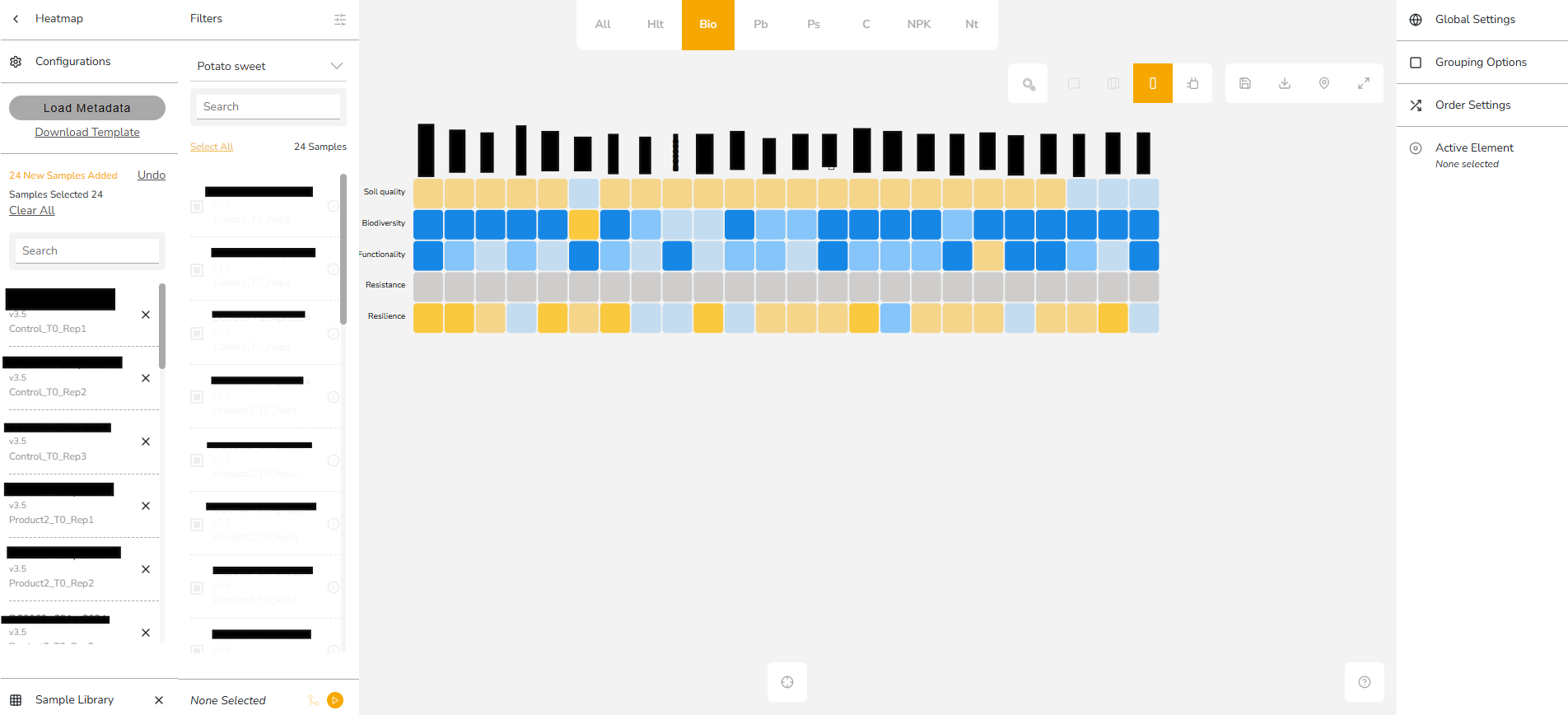
You can toggle between:
- Code version (sample codes by default)
- Name version (names you provided at submission) via Global Settings:
Exploring the HeatMap
Once you’ve selected and loaded your samples, choose the dimension of data you want to visualize from the top bar.

Available options:
- All – Display all available dimensions for your samples.
- Hlt (Health Status) – View disease-related variables (e.g., Alternaria rot or other pathogens).
- Bio (Biosustainability) – Show indexes such as soil quality, biodiversity, and functionality.
- Pb (Biocontrol Promoters) – Highlight microbial agents with natural control functions (e.g., fungicidal or insecticidal potential).
- Ps (Stress Adaptors & Hormones) – Focus on hormone-related indexes (e.g., auxin production, IAA).
- C (Carbon) – Display indexes related to carbon cycling (e.g., carbon fixation).
- NPK (Macronutrients) – View indexes for nitrogen, phosphorus, and potassium (e.g., inorganic nitrogen release, phosphorus assimilation, potassium solubilization).
- Nt (Micronutrients) – Show micronutrient-related indexes (e.g., zinc, manganese, sulfur).
Tip: Start with All to get a complete overview of the metrics, then switch to specific dimensions to focus on particular functions or crop management needs.
You can also:
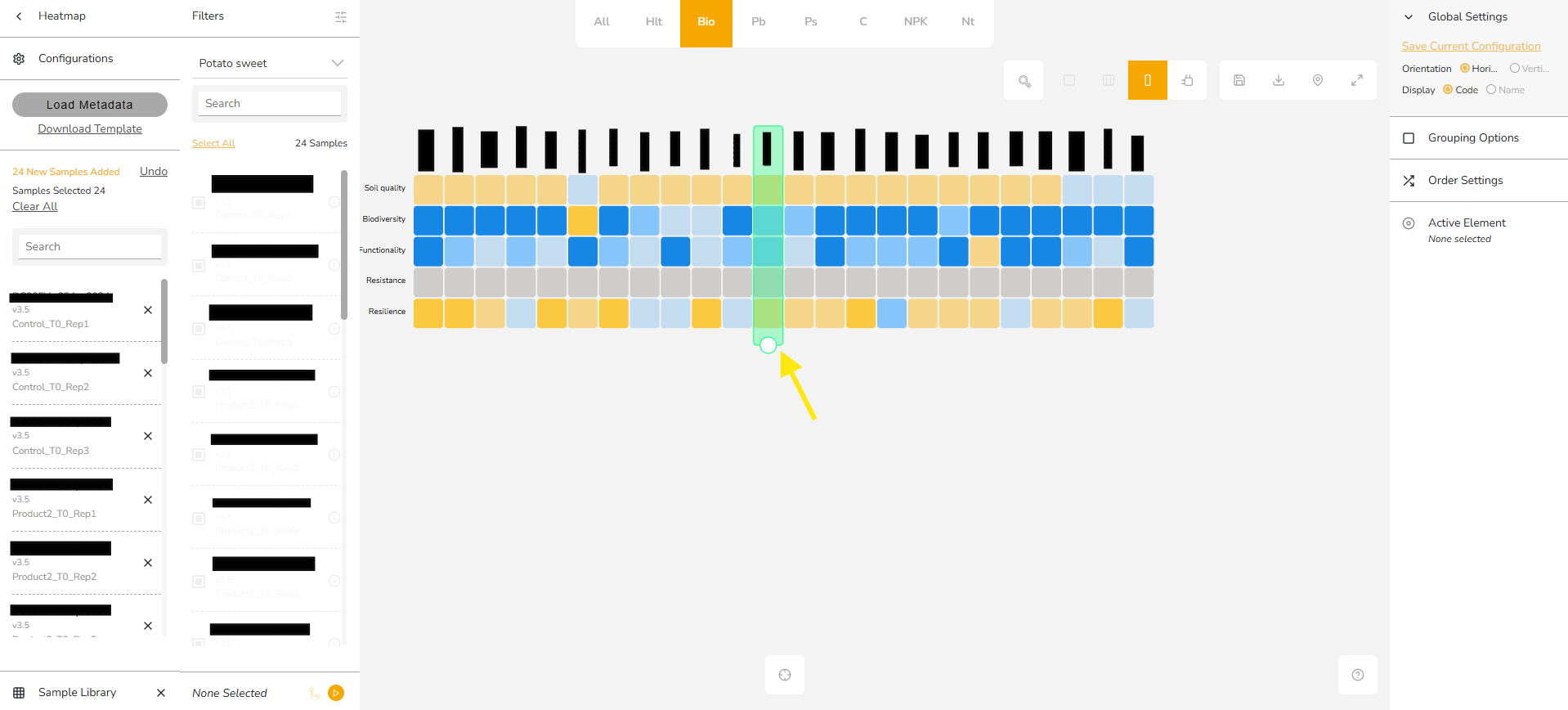
- Drag & reorder samples to adjust the view.
- Highlight / unhighlight rows by clicking on them.

- Full screen mode for a larger view (press Escape to exit).
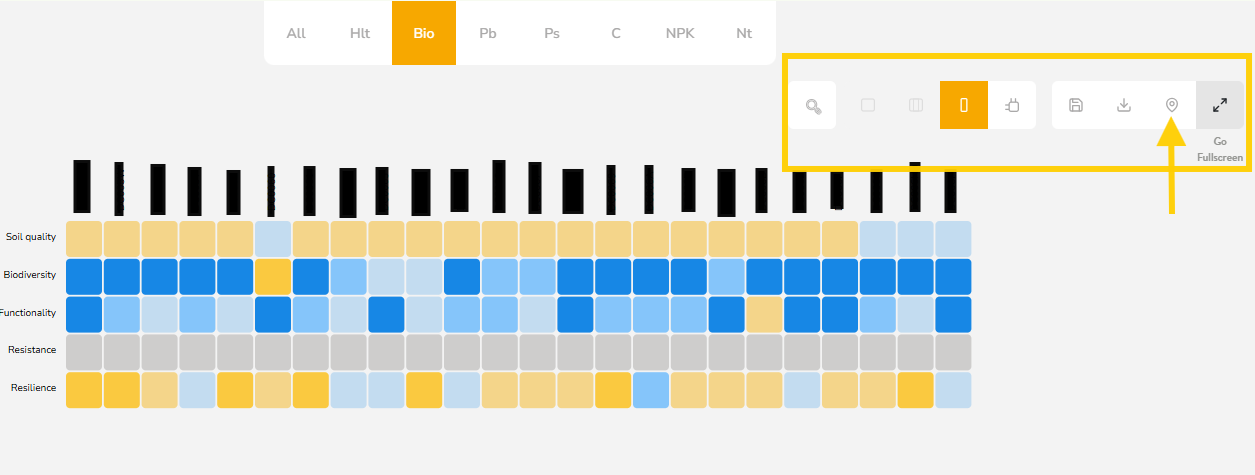
- Map view to see the geographic locations of your samples. You can also download the map view.
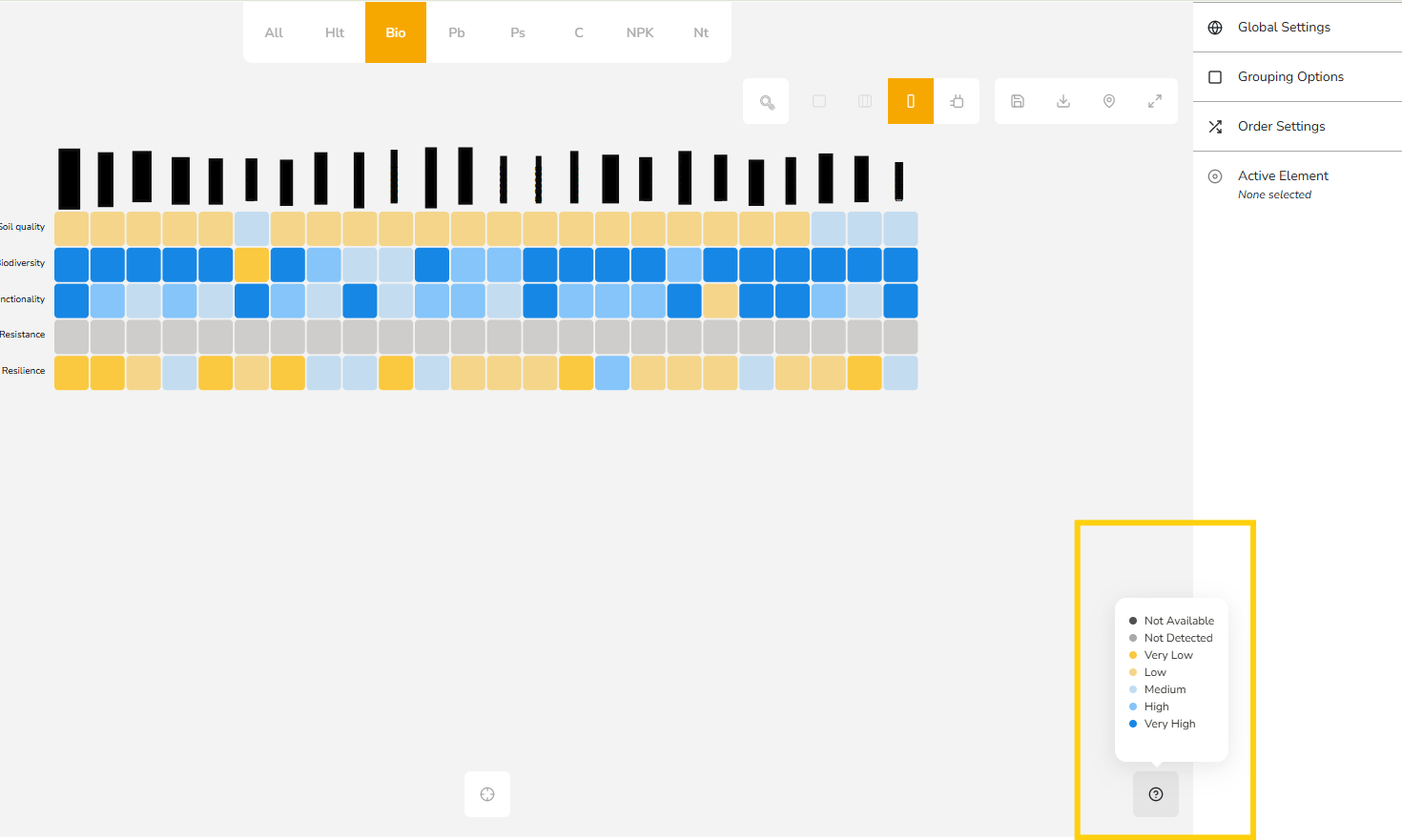
Legend:
- Dark yellow = Very low
- Dark blue = Very high
Saving & Sharing Configurations
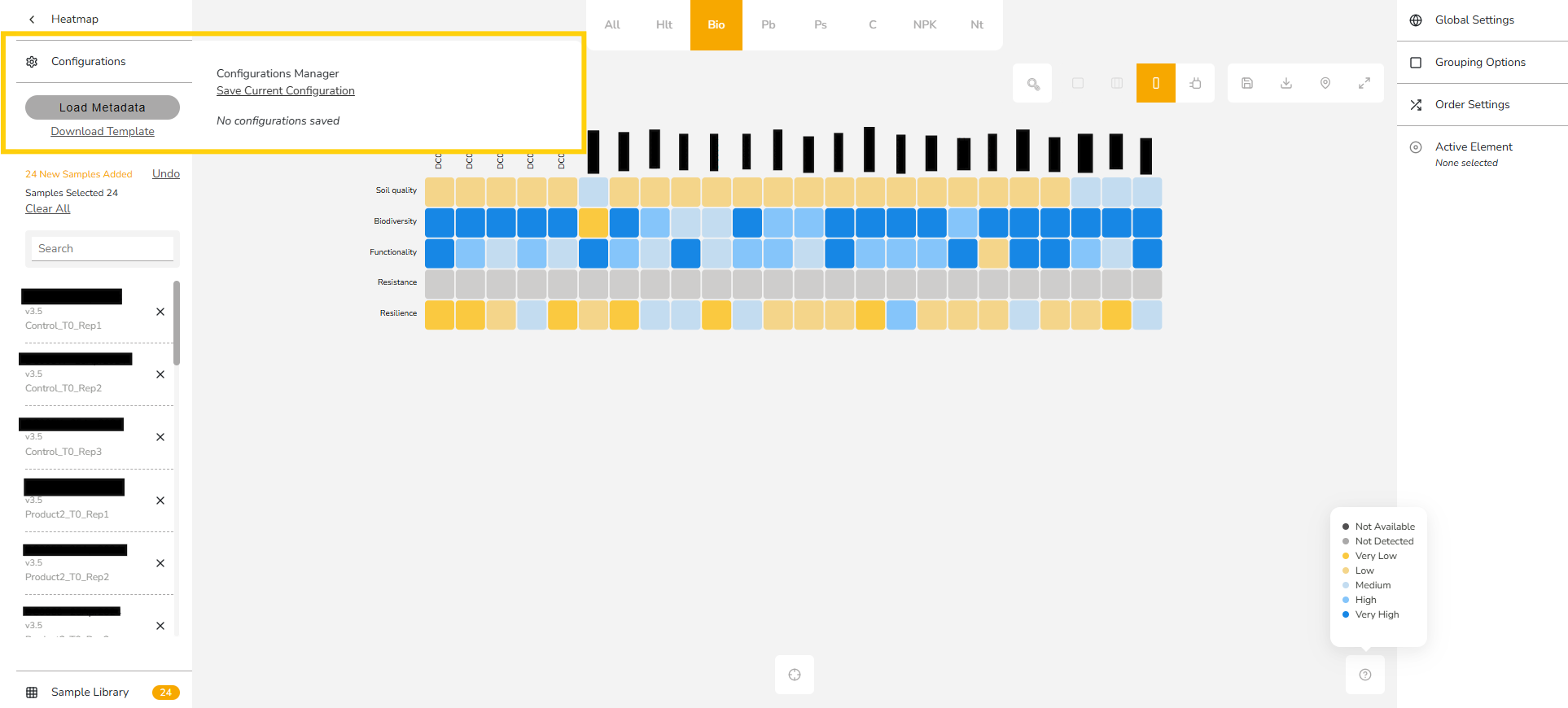
You can also focus on specific crops or metrics and save them (e.g., compare Yukon vs Warba potatoes, or isolate NPK). To do this, click on ‘Clear All’ on the left panel and select the ones you want.

- Click Save Configuration to store your setup.
- Add a name (e.g., “Yukon vs Warba NPK”) and choose whether to keep it private or share it with colleagues/sub-clients.
- Saved configurations appear in your list for future use.
- You can also download configurations to your computer or delete them with the trash icon.
Exporting Data
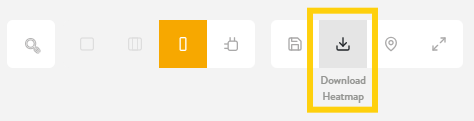
- Download the heatmap directly for use in presentations or reports.
- Alternatively, take a screenshot.
- You can also download the template for offline reference (Click on ‘Configuration’ on the left side panel)
👉 Want a Step-by-Step Walkthrough?
Prefer to learn by watching? Check out our short explainer video on using the HeatMap Tool for a guided, step-by-step demo.