![bmk logo dark@2x.png]](https://info.biomemakers.com/hs-fs/hubfs/Web%20Images/Logos/bmk%20logo%20dark@2x.png?height=30&name=bmk%20logo%20dark@2x.png)
Use it to answer questions like:
-
Which metrics differ the most between treated vs. untreated plots?
-
What are the minimum, maximum, and distribution for a metric in each cluster?
-
Which indexes best separate one management approach or parcel group from another?
Accessing the Metric BoxPlot Tool
-
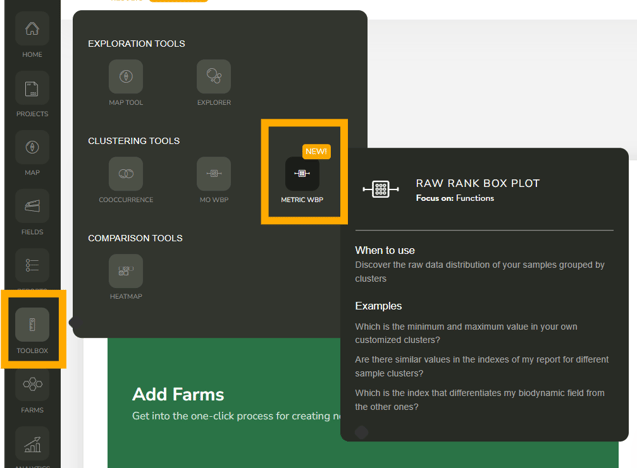
Log into your BeCrop® Portal and choose the crop you want to analyze.
-
Open Toolbox → Metric BoxPlot.
Note: The tool shows all samples for one crop at a time. To analyze another crop, switch crops in the Portal header and reopen the tool.
Set Up Your Clusters
-
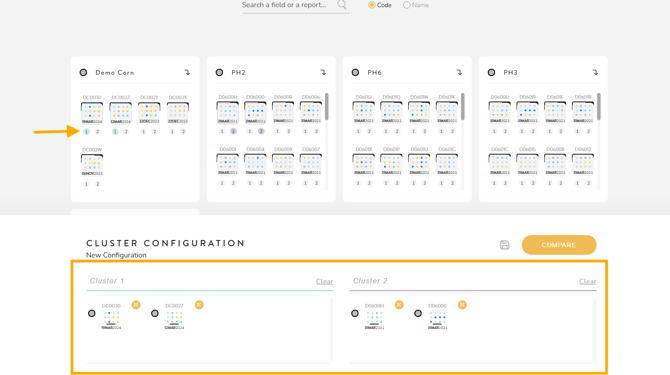
Assign samples to clusters
-
Click the circle below each sample to add it to Cluster 1 or Cluster 2. You can group by treatment, timeframe, parcel, or any comparison you want to make.
-
-
Name clusters for clarity (e.g., “Control – untreated” vs. “Product – treated”).
-
Show names (optional)
-
Toggle from codes to names to display human-readable sample names.
-
-
Save your configuration
-
Click the Save icon, name your configuration, and reload it later using Load Saved Configurations.
-
Run the Comparison
-
Click Compare.
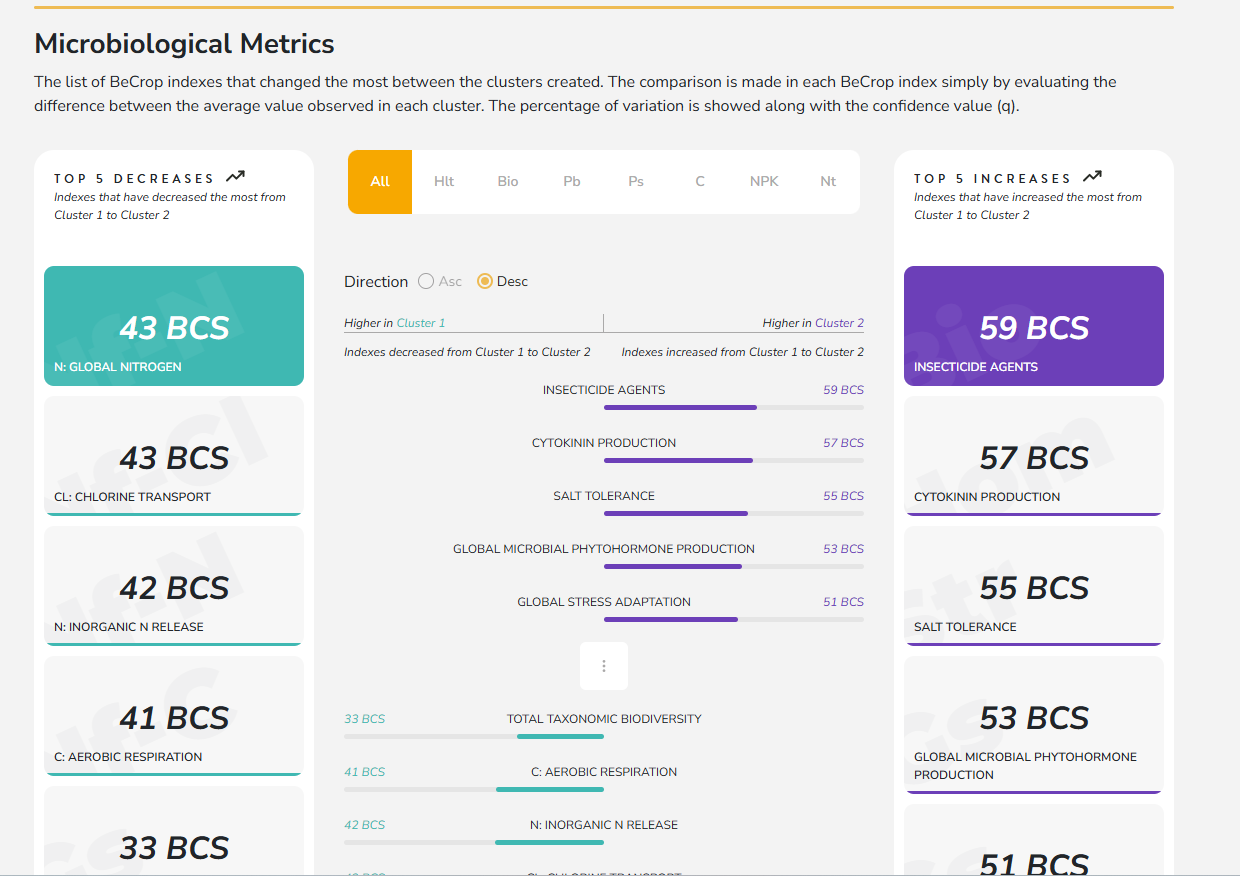
The results page shows differences in BeCrop® Score (0–100) between cluster averages across report metrics (including diseases and functional indexes).
-
Right column: metrics with the largest increases in Cluster 2 vs. Cluster 1.
-
Left column: metrics with the largest decreases (i.e., higher in Cluster 1).
-
Colored bars point toward the cluster with the higher average.
Filtering Sections
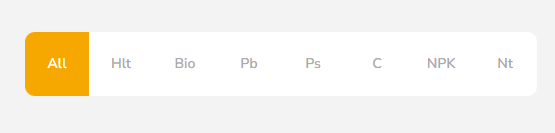
At the top of the results screen, you can filter metrics into categories (similar to the HeatMap tool):
-
Biocontrol agents
-
Phytohormones & Stress Adaptors
-
Nutrient & Carbon Cycling Pathways (BCC pathways)
-
And more
Reading the Box-and-Whisker Plots
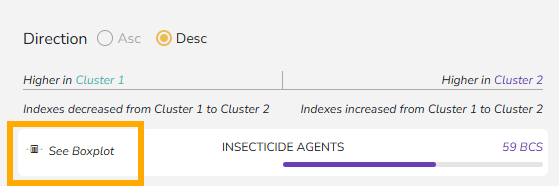
Click any metric to open its box plot:
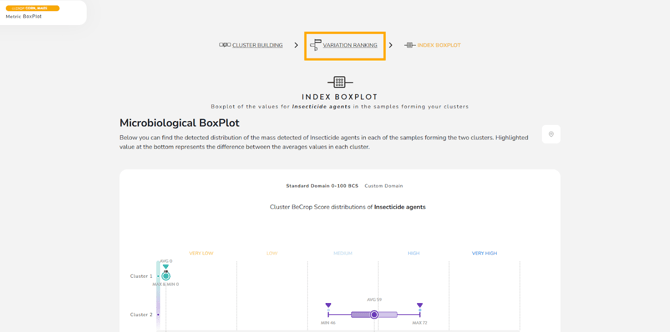
- The plot shows the 0–100 BeCrop® Score across the bottom, and the 1–5 bands (Very Low to Very High) along the top.
- You can see the distribution of samples in each cluster and the average marker, which helps you understand spread and separation between groups.
Statistical Significance (p-value)
If there are 5 or more samples in each cluster, the tool calculates a t-test p-value. As a general rule, p < 0.05 is considered statistically significant.
Return to the list: use Variation Ranking (top) to go back to the ranked metric view.
Practical Example
You trialed a biological product and want to see its effect on key functions:
- Cluster 1 = Control (untreated)
- Cluster 2 = Treated
- Click Compare, filter to the category you care about (for example nutrient pathways or disease risk), then click individual metrics to review the score difference, distribution, and p-value.
When to Use the Metric BoxPlot Tool
-
You want deeper numeric insight than the 1–5 scale
-
You are comparing two groups (management, timing, treatments, parcels)
-
You want distributions and significance, not just a snapshot
-
You want to identify which metrics best separate two clusters
👉 Want a Step-by-Step Walkthrough?
Prefer to learn by watching? Check out our short explainer video on using the Metric BoxPlot Tool.